
Best Video Editing Software for YouTube (2026 Edition)
We tested the top 5 editors in 2026. From DaVinci's new AI masking to CapCut's viral machine, here is exactly what you should use.
Let's be honest: the "best" video editor isn't the most expensive one. It's the one that stops you from quitting your channel out of frustration.
In 2026, the game has completely flipped. Free tools are now more powerful than what Hollywood used ten years ago, and AI features have moved from "gimmick" to "mandatory workflow."
We didn't just read the spec sheets—we opened the timelines. Whether you're a faceless channel creator or a cinematic vlogger, one of these 5 tools is your new best friend.
Quick Comparison: Top 5 Editors at a Glance
| Editor | Best For | Price | Key 2026 Feature |
|---|---|---|---|
| DaVinci Resolve | The Professional Choice | Free / $295 Lifetime | Neural Engine 3.0 & Magic Mask |
| CapCut Desktop | Speed & Virality | Free / ~$10/mo | AI Auto-Captions & Viral Effects |
| Adobe Premiere | Career Editors | ~$22.99/mo | Generative Extend & Object Mask |
| Final Cut Pro | Mac Loyalists | $299 Lifetime | Apple Immersive (Vision Pro) |
| Shotcut | Older Laptops | Free (Open Source) | Low-Spec Performance |
1. DaVinci Resolve — The Overkill (That You Should Use Anyway)
Best For: Aspiring professionals, filmmakers, and creators who want zero limits.
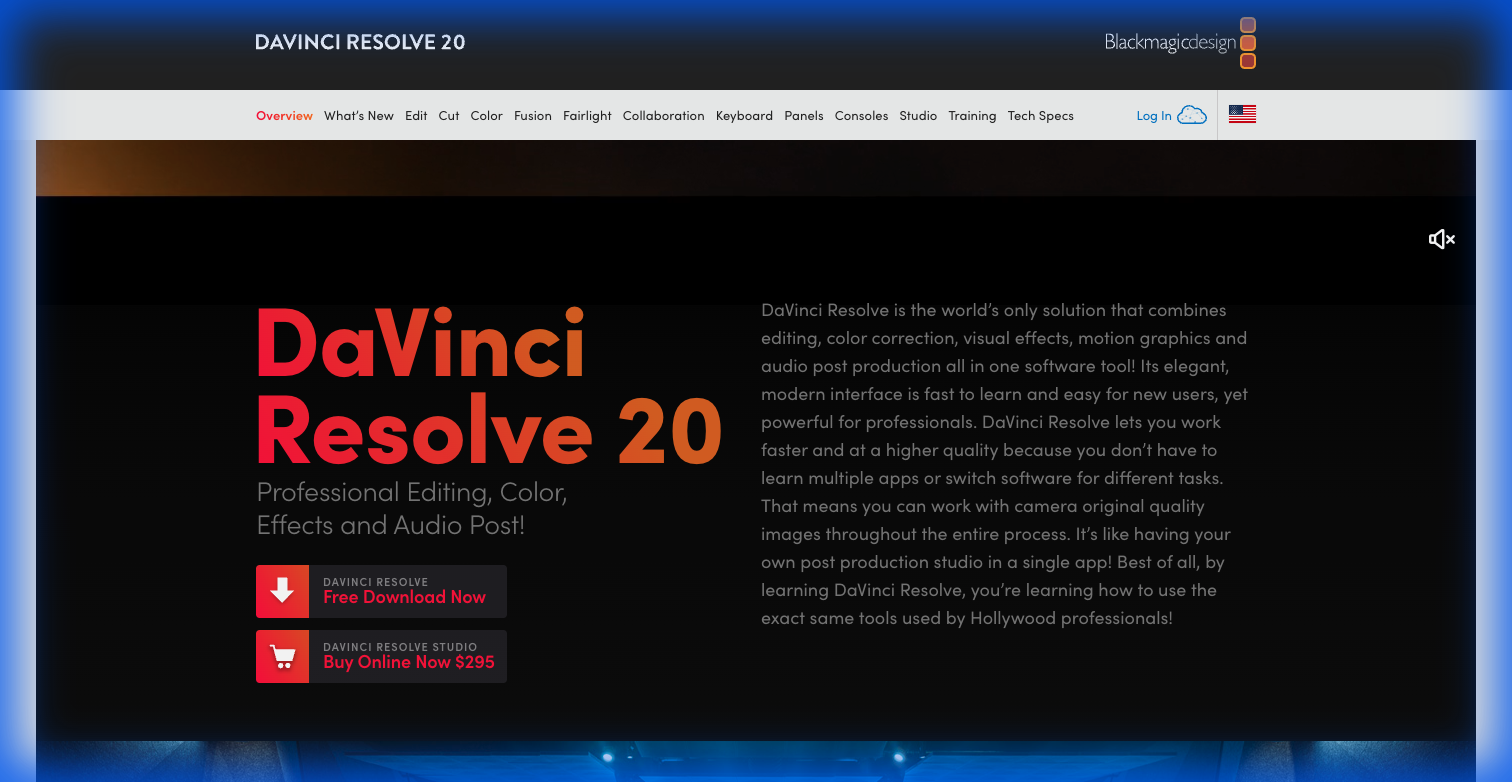
DaVinci Resolve Interface showing color grading and editing tools
If you asked a professional editor to recommend one free tool, they'd say DaVinci Resolve. It’s not just an editor; it's a color grading suite, a VFX compositor (Fusion), and a DAW (Fairlight) wrapped in one icon.
Why it wins in 2026: The new Neural Engine 3.0 update in 20.3.2 is ridiculous. The Magic Mask tool (Studio version) now tracks subjects in real-time without nuking your GPU. But even the free version gives you 95% of the power, including unlimited 4K exports.
The Strategy: Don't let the interface scare you. Stick to the "Cut" and "Edit" tabs for your first month. Ignore "Fusion" until you're ready. The color tools alone will make your cheap camera look like a cinema rig.
Pros:
- Truly Free: No watermarks, no trial periods, high-res export.
- Best-in-Class Color: It’s what actual movies use.
- Stability: Crashes far less than Premiere.
Cons:
- Steep Learning Curve: It feels like flying a spaceship.
- Hardware Hungry: You need a decent GPU (8GB+ VRAM recommended for 4K).
2. CapCut Desktop — The Viral Content Machine
Best For: Short-form creators (Shorts/TikTok) and anyone prioritizing speed over technical perfection.
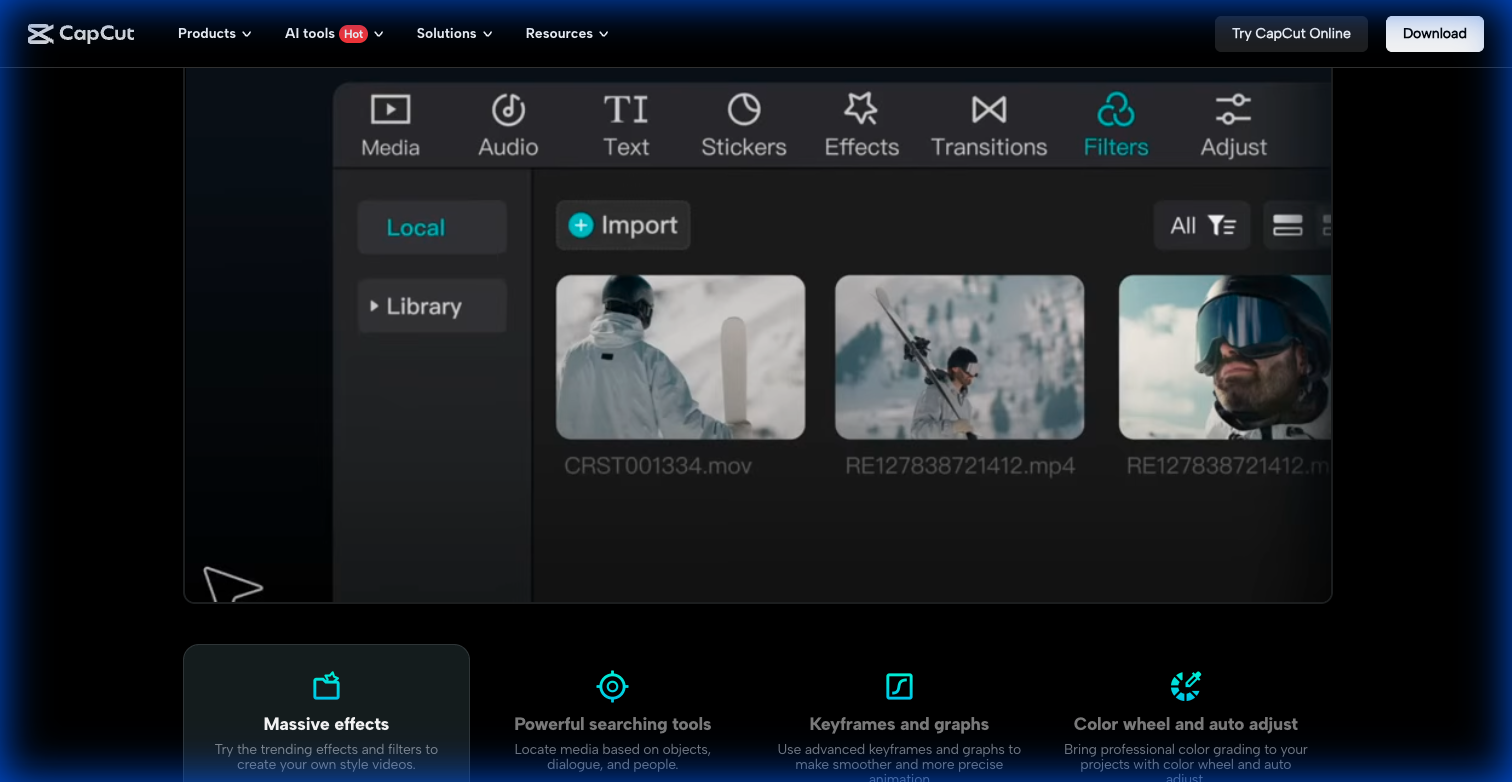
CapCut Desktop interface demonstrating features
CapCut started as "that mobile app," but in 2026, the Desktop version is arguably the most efficient editor for YouTube. Why? because it understands retention. It’s built to keep people watching.
Why it wins in 2026: Speed. Pure speed. Features that take 20 minutes in Premiere (like accurate auto-captions with animations) take one click here. The "Pro" version (~$10/mo) unlocks advanced AI background removal that rivals green screens.
The Strategy: Use CapCut for your "talking head" videos or Shorts. The built-in library of trending transitions, sound effects, and stickers means you don't have to leave the app to find assets.
Pros:
- Incredible Speed: Drag-and-drop effects that work instantly.
- Built-in Assets: Huge library of trending music and stickers.
- best Auto-Captions: Essential for modern social video.
Cons:
- Privacy Concerns: Owned by ByteDance (something to keep in mind for corporate work).
- Audio Limitations: Mixing tools are basic compared to DaVinci or Premiere.
3. Adobe Premiere — The Industry Standard
Best For: Employment-seeking editors and teams using other Adobe apps.
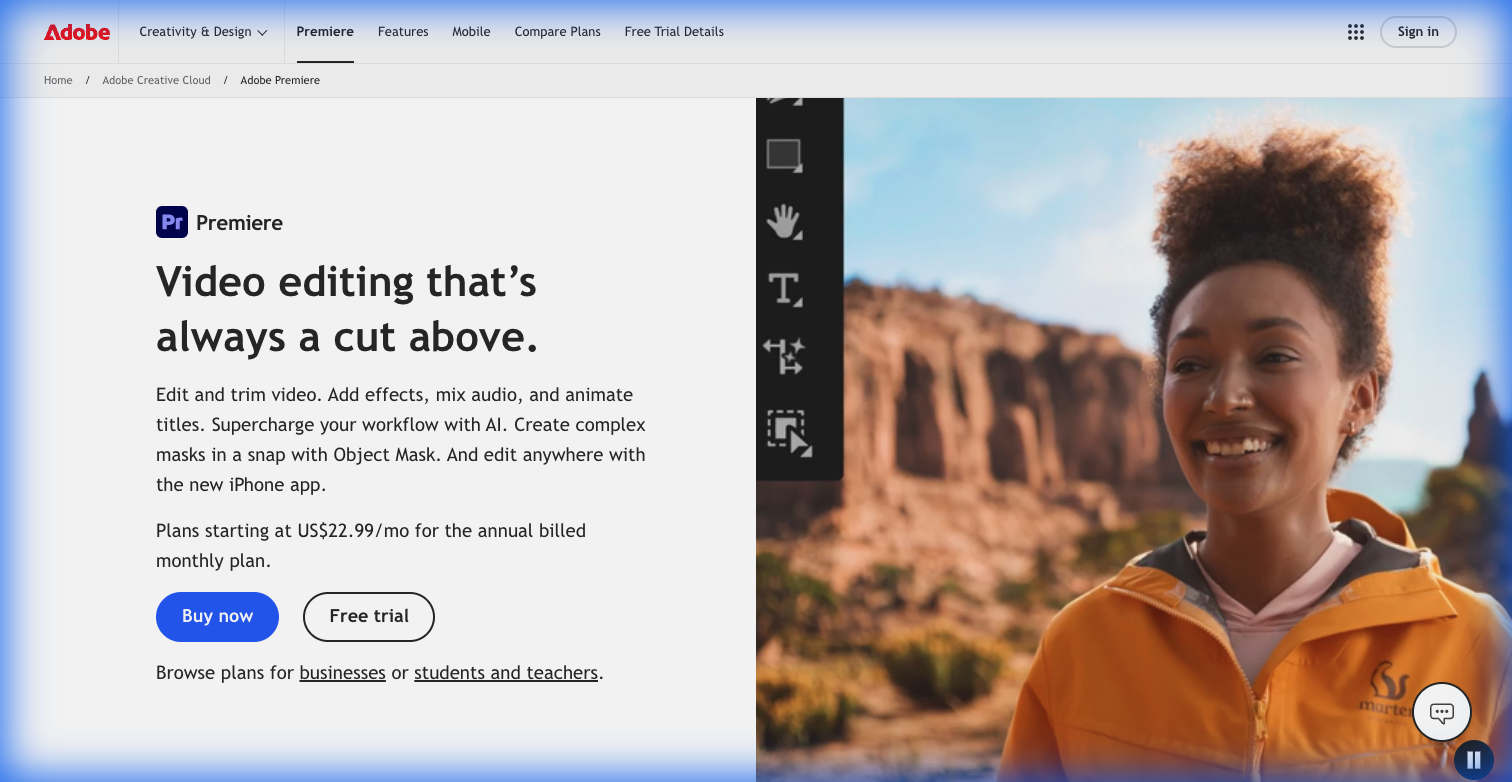
Adobe Premiere Pro product page hero
If you want a job in the industry, you learn Premiere. It’s widely used for a reason: the ecosystem. The ability to "Dynamic Link" a graphic from After Effects directly into your timeline is a workflow saver that no other software has matched.
Why it wins in 2026: Adobe finally woke up. The new Generative Extend feature is a lifesaver—it uses AI to add frames to the start or end of a clip when you just need one more second of footage. The AI Object Mask also makes blurring faces or tracking text surprisingly easy.
Pros:
- Ecosystem: Seamless with Photoshop and After Effects.
- Text-Based Editing: Edit video by deleting text from the transcript (huge for podcasts).
- Generative AI: Integrated Firefly tools are actually useful now.
Cons:
- Subscription Fatigue: ~$22.99/mo forever.
- Crash Prone: "Premiere just crashed" is still a meme for a reason. Save often.
4. Final Cut Pro — The Performance King (Mac Only)
Best For: Mac users who want speed and optimization.
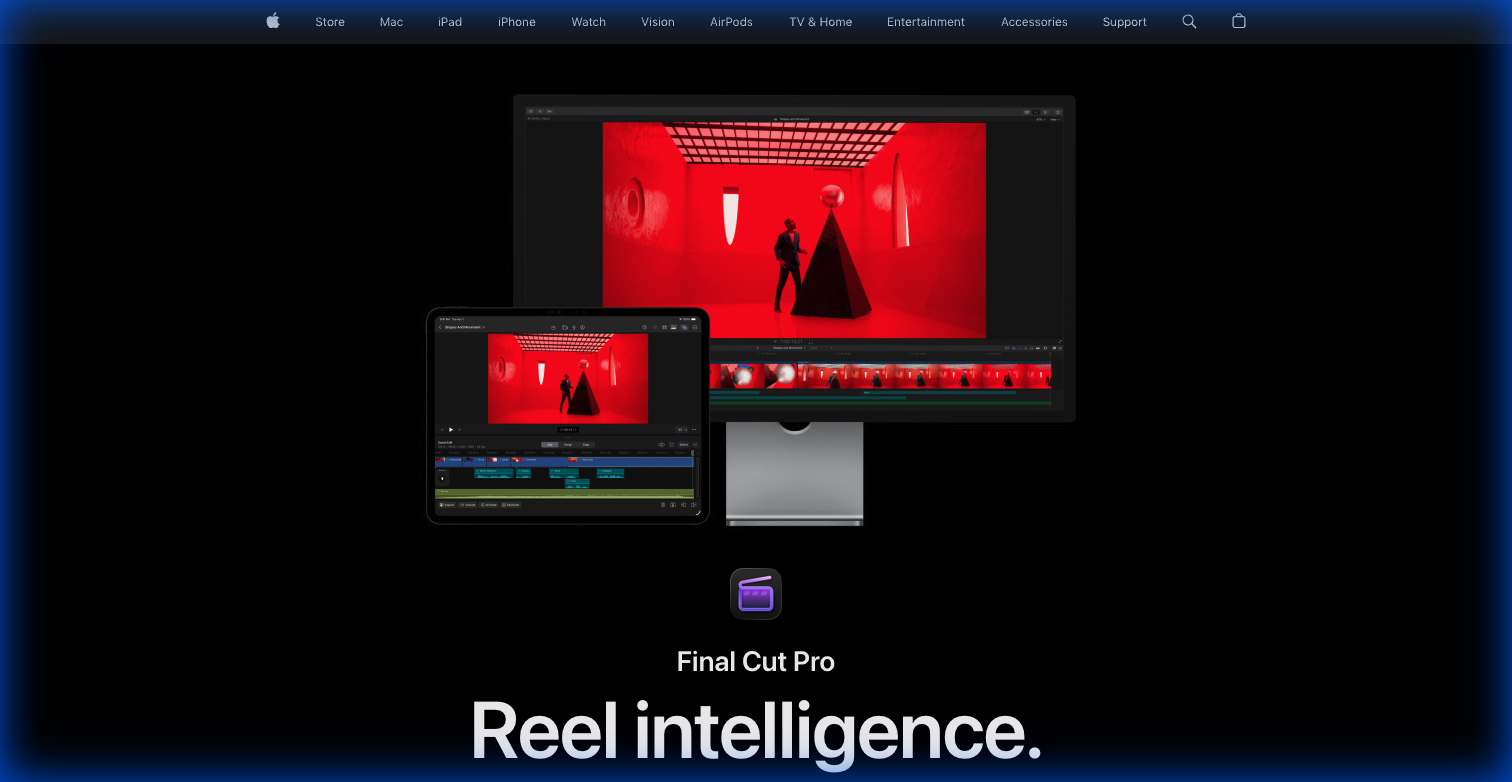
Final Cut Pro product visual
If you own a Mac, Final Cut Pro (FCP) feels like a superpower. Because Apple controls both the hardware and the software, FCP renders video frighteningly fast—often letting you edit 4K on a MacBook Air without the fans even spinning up.
Why it wins in 2026: Support for Apple Immersive Video. If you're creating spatial content for the Vision Pro, FCP is the native workflow. The "Magnetic Timeline" divides opinion—you either love how it snaps clips together or hate that you can't leave gaps—but once you master it, it's undeniably fast.
Pros:
- Optimization: Unbeatable performance on Apple Silicon.
- One-Time Buy: $299 for life (though the iPad version is a sub).
- Render Speed: Export times are often half that of Premiere.
Cons:
- Mac Only: Windows users need not apply.
- Magnetic Timeline: Requires "unlearning" traditional editing habits.
5. Shotcut — The Gentle Alternative
Best For: Creators on older computers or Linux users.
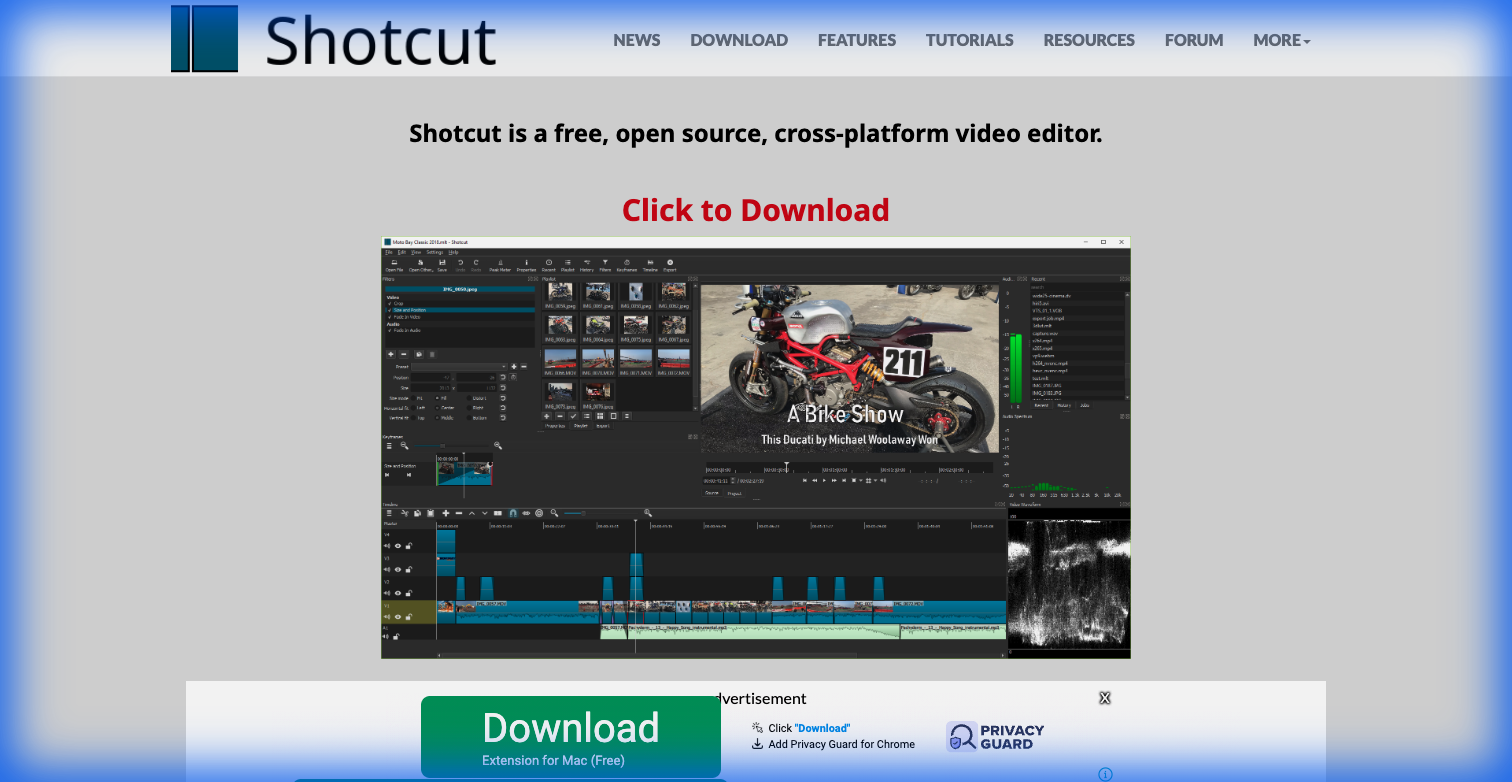
Shotcut homepage interface
Shotcut is the open-source hero. It’s completely free, open-source, and works on Windows, Mac, and Linux. Unlike DaVinci Resolve, it doesn't require a NASA supercomputer to run.
Why it wins in 2026: It fills a vital niche: the "no-nonsense" editor. It supports almost every video format known to man (thanks to FFmpeg) and allows for "native editing"—no import libraries, just drag file to timeline. It’s perfect for simple cuts on a 5-year-old laptop.
Pros:
- Lightweight: Runs on older hardware.
- Format Support: Will open almost anything.
- Completely Free: No ads, no paid tier.
Cons:
- Interface: Looks dated compared to CapCut.
- Basic Tools: Don't expect AI tracking or advanced VFX.
Verdict: Which One Should You Download?
- Just Starting & Want to Learn the Pro Way? Download DaVinci Resolve. It’s free, powerful, and you’ll never outgrow it.
- Making Shorts/TikToks? Get CapCut Desktop. It will save you hundreds of hours on captions.
- Want a Career in Editing? You need to learn Adobe Premiere.
- On a Mac? Final Cut Pro is worth the investment for the speed alone.